How to export a Claude chat to Markdown or PDF
Claude can export your data, but only for your whole account, as an emailed download link. If you want one conversation as a file you can keep or share, here are the options as of September 2026.
Claude's built-in export
According to Anthropic's help center at the time of writing, you can request an export of your data from Claude's settings (look under Privacy). Claude then emails you a download link, and the link expires after 24 hours.
This is the right tool for a full backup of your account. It is not a per-chat export: you cannot pick one conversation, and there is no Markdown or PDF option for a single chat. If you only need one conversation, the methods below are faster.
One chat, without an extension
Copy responses or the whole page
Each Claude response has a copy button, which copies that response's text, including Markdown formatting for headings, lists and code in many cases. To keep the whole conversation, copy each of your prompts and each response in order into a document. It works, but it is slow for long chats, and it is easy to miss a turn.
Artifacts, such as documents or code Claude produced in a side panel, can usually be copied or downloaded on their own from the artifact view.
Print the page to PDF
-
Open the conversation and load all of it
Scroll to the top of the chat so every earlier message has loaded.
-
Open the print dialog
Press Ctrl P (Cmd P on a Mac).
-
Save as PDF and check the preview
Choose Save as PDF as the destination. Look through the preview before saving: web app layouts are not designed for print, so sidebars, buttons and the message box often appear, and long code blocks may be clipped.
One chat, with Sidebarly
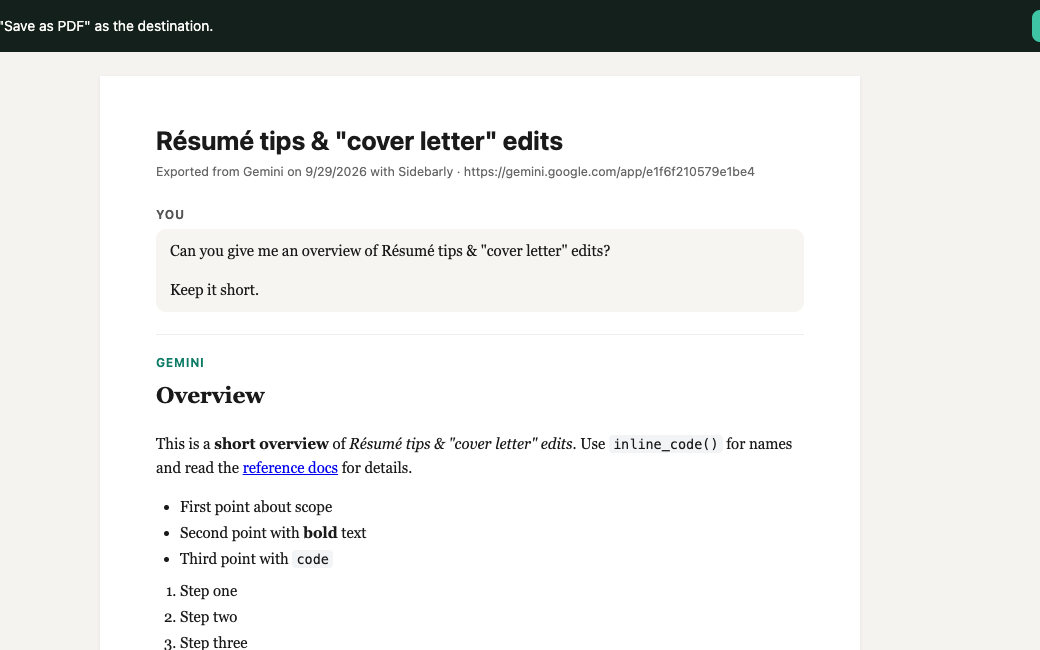
Sidebarly Folders for Claude adds an Export button to its panel. It turns the conversation on your screen into a tidy Markdown file or a clean PDF, with your prompts and Claude's responses labeled and in order, and code blocks, lists and tables kept.
-
Open the chat in Claude
For long conversations, scroll to the top first. Sidebarly exports what is loaded on your screen and does not fetch anything from Claude behind the scenes.
-
Click Export in the Sidebarly panel
The export dialog opens with the chat title as the file name.
-
Pick Markdown or PDF
Markdown downloads a .md file immediately. PDF opens a clean print view without the app around it; choose Save as PDF in Chrome's print dialog.
-
Export a folder at once (Pro)
Pro can export a whole folder as a zip of Markdown files. Because Sidebarly never fetches chats in the background, the zip holds the full text of chats that have been open on your screen; open any others first.
What is free and what is Pro
Free includes 5 Markdown exports per day. Pro adds PDF, folder zip and unlimited exports. Files are built in your browser and saved to your Downloads folder; nothing is uploaded to us. See pricing.
Tips for clean exports
- Rename first. A clear chat title becomes a clear file name, which matters when you have a folder of exports.
- Choose Markdown for archives. It is plain text, small, searchable, and opens in almost any editor or notes app.
- Choose PDF for sharing. It looks the same for everyone and prints well.
- Keep the account export too. Per-chat files are for daily use; Claude's account export is still the most complete backup of everything.
FAQ
Can Claude export a single conversation?
Not natively as of September 2026. The built-in export covers your whole account and is delivered as an emailed link that expires in 24 hours. Copying responses or printing the page are the built-in ways to save one chat.
Does the Sidebarly export include artifacts?
The export includes the conversation text as shown in the chat. Content that lives only in a separate artifact panel may not be fully included, so download important artifacts from the artifact view as well.
Is it allowed to export my own chats?
Sidebarly only reads the conversation you have open, the same text you can see and copy yourself. It does not use Claude's internal APIs or automated access.
Where do exported files go?
To your browser's normal Downloads folder. They never pass through a Sidebarly server.
Export Claude chats in one click
Markdown and PDF for any conversation, plus folders, pins and tags. Stored on your computer.