How to export a Gemini chat to Markdown or PDF
Gemini can send a single response to Google Docs, but as of September 2026 it has no button to save a whole conversation as a file. Here are four ways to do it, from built-in options to a one-click export.
Your options at a glance
| Method | Whole chat? | Formats | Effort |
|---|---|---|---|
| Share and export a response | No, one response | Google Docs | Low per response |
| Copy and paste | Yes, by hand | Whatever you paste into | High for long chats |
| Browser print to PDF | Mostly | Low, messy result | |
| Google Takeout | All activity at once | Archive files | High, not per chat |
| Sidebarly export | Yes | Markdown, PDF, folder zip | One click |
Gemini's menu names can change. The built-in options below describe the web app at the time of writing.
Without an extension
1. Export a single response to Docs
Under each Gemini response there is a share and export menu. At the time of writing it offers Export to Docs, which creates a Google Doc containing that one response. From Docs you can then use File, Download to get a PDF or other format.
This is the cleanest built-in option, but it covers one answer at a time and leaves out your own prompts, so the file loses the back-and-forth that made the conversation useful.
2. Copy and paste into a document
Select the conversation, copy it and paste it into a text editor or document. Each response also has a copy option. This keeps both sides of the chat if you are careful, but code blocks, tables and headings often lose their formatting, and long chats take many passes.
3. Print the page to PDF
-
Load the whole conversation
Open the chat and scroll to the very top so every earlier message is loaded on the page.
-
Open the print dialog
Press Ctrl P (Cmd P on a Mac).
-
Choose Save as PDF
Set the destination to Save as PDF and click Save. Check the preview first: the sidebar, input box and page chrome are usually printed too, and long chats may be cut off or split awkwardly.
4. Google Takeout
Google Takeout can export your Gemini activity in bulk. It is useful as an archive of everything, but it is not a per-chat export: you get your whole history in one download, not a readable file for the one conversation you want to share.
One-click export with Sidebarly
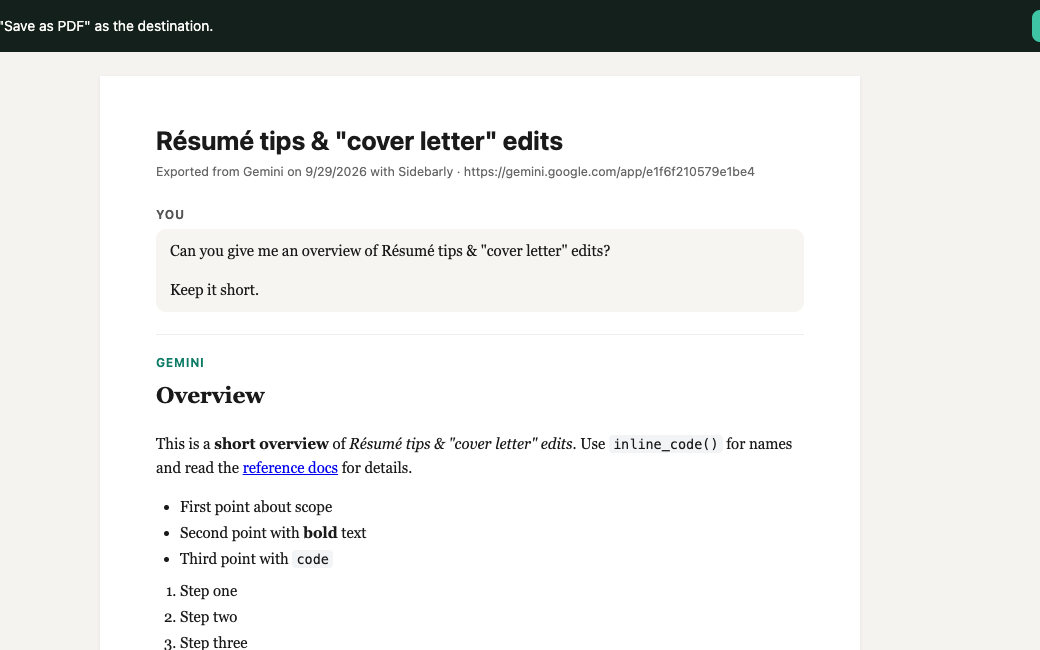
Sidebarly Folders for Gemini adds an Export button to its panel. It turns the conversation you have open into a clean Markdown file or PDF, with both your prompts and Gemini's responses, headings, lists, tables and code blocks intact.
-
Open the chat
Open the conversation in Gemini. For very long chats, scroll to the top first: export reads the conversation that is loaded on your screen and never fetches anything behind the scenes.
-
Click Export in the Sidebarly panel
The export dialog opens with the chat title as the file name.
-
Choose Markdown or PDF
Markdown downloads a .md file straight away. PDF opens a clean print view without the sidebar or input box; choose Save as PDF in Chrome's print dialog.
-
Optional: export a whole folder
With Pro, export every chat in a folder as a zip of Markdown files. Sidebarly never fetches chats in the background, so the zip holds the full text of chats that have been open on your screen; open any others first.
Limits, honestly
The free plan includes 5 Markdown exports per day. PDF, folder zip and unlimited exports are part of Pro. Everything happens in your browser; the file never passes through our servers.
Markdown or PDF?
- Markdown if you want to keep, search, or edit the text: note apps such as Obsidian, code repositories and most editors read it natively, and it stays small.
- PDF if you want to send or print the conversation exactly as it looks, for a colleague, a client or a record.
- Both for anything important: Markdown as your archive, PDF as the copy you share.
FAQ
Can Gemini export a whole conversation natively?
Not as of September 2026. The share and export menu works on single responses, and Google Takeout exports all activity at once. Neither produces a file for one full conversation.
Does the export include my prompts?
Yes. Sidebarly's Markdown and PDF exports include both sides of the conversation, labeled, in order.
Why is part of a long chat missing from my export?
Gemini loads older messages as you scroll up. Sidebarly exports what is loaded on screen, so scroll to the top of the chat and export again.
Is my chat uploaded anywhere during export?
No. The file is built in your browser and saved to your Downloads folder. Sidebarly has no server that receives chat content. See the privacy policy.
Export Gemini chats in one click
Markdown and PDF, stored only on your computer. Free to start, 7-day Pro trial, no card.