How to organize Gemini chats into folders (2026)
As of September 2026, the Gemini web app still has no folders. You can get surprisingly far with pins, careful names and Notebooks, and an extension can add real folders on top. Here are both approaches.
What Gemini can do on its own
According to Google's Gemini help center at the time of writing, the chat list supports exactly these actions:
- Search your past chats (added in August 2025).
- Pin a chat so it stays at the top of the list.
- Rename a chat.
- Delete a chat.
- Branch a conversation into a new one.
Since April 2026 there are also Notebooks, which can hold existing chats. They are useful, but they are not folders: a notebook is a continuous workspace that remembers sources and instructions. We cover the difference in Gemini Notebooks vs folders.
What is missing: folders, nested folders, tags, and any way to group chats without changing how they behave. Google's own support forum said as much in January 2026, noting that the standard web app "does not have native 'folders' or 'labels'" and pointing people to browser extensions.
Organize without an extension
If you would rather not install anything, this routine keeps a long chat list usable. It takes a minute per chat and works on any computer.
-
Rename chats with a prefix
Open a chat's menu in the sidebar, choose Rename, and start the title with a short project word in brackets, for example
[Work] Q3 budget notesor[Trip] Lisbon plan. Automatic titles are rarely what you would search for later. -
Pin the few chats you use every day
Use Pin on the handful of conversations you return to constantly. Keep this list short; a pinned list of thirty chats is just a second unsorted list.
-
Search by your prefix
Type the prefix, such as
[Work], into Gemini's chat search to pull up everything with that label. This is the closest thing to opening a folder that Gemini offers natively. -
Use a Notebook for one ongoing project
If a project needs shared sources and instructions, create a Notebook and add the related chats to it. Note that adding chats to a notebook requires Keep Activity to be on.
-
Delete what you will never open again
Gemini deletes one chat at a time. A short weekly pass through the oldest chats keeps search results clean.
The limits are real: prefixes only help if you rename every chat, there is no nesting, a chat can only carry one prefix, and deleting in bulk is slow.
Organize with folders (Sidebarly)
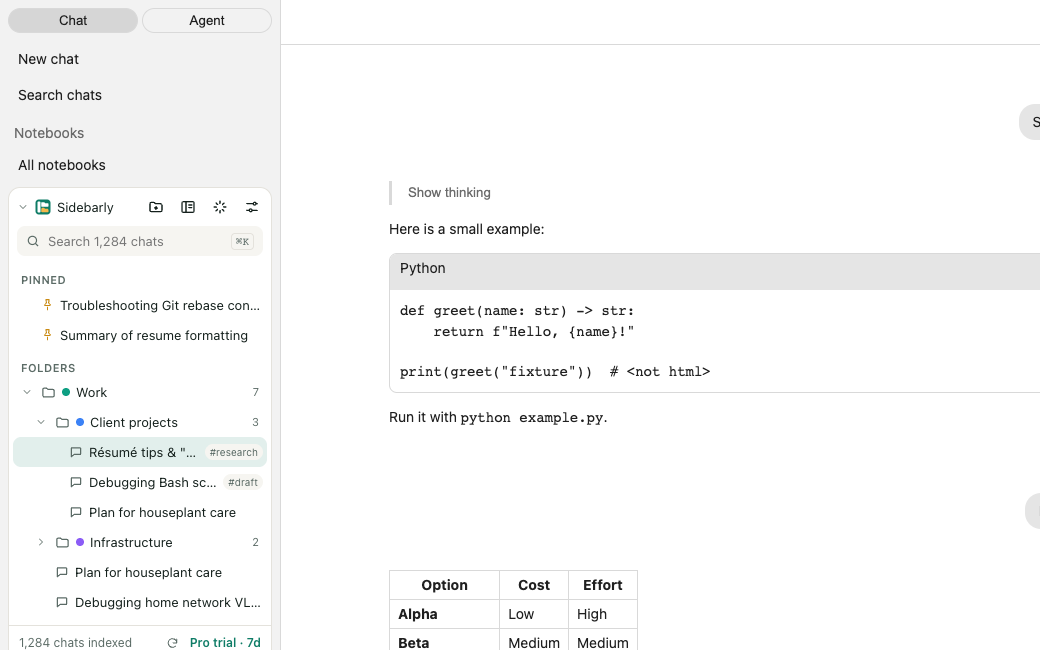
Sidebarly Folders for Gemini is a Chrome extension that adds a panel above Gemini's own chat list. The native list stays exactly as it is; Sidebarly never hides or reorders it. Folders, pins and tags are stored in your browser, not on a server.
-
Install and open Gemini
Add Sidebarly Folders for Gemini from the Chrome Web Store, then open or reload gemini.google.com. The Sidebarly panel appears at the top of the sidebar.
-
Click "Index all chats" once
Gemini only loads your most recent chats until you scroll. When you click Index all chats, Sidebarly scrolls your own sidebar list to the end once, the same way you would by hand, and saves each chat's title and id locally. The panel then shows "N chats indexed" and keeps up with new and renamed chats on its own.
-
Create folders
Click the New folder (+) button and name it. The free plan includes 5 folders; Pro adds unlimited folders and nesting, so "Work" can hold "Clients" and "Hiring".
-
Move chats into folders
Drag a chat from Gemini's sidebar onto a folder, or use Move to folder in the chat's menu inside the Sidebarly panel. The chat itself does not change; it simply appears under that folder.
-
Add pins and tags for what cuts across folders
Pinned chats appear in the panel's Pinned section. Tags such as
#codeor#drafthandle chats that belong to more than one topic. -
Find anything with search or the palette
The panel's search box matches titles and tags across every indexed chat. Press Ctrl K (Cmd K on a Mac) to jump to any chat or folder by typing a few letters.
Why "index all chats" matters
A common failure of folder extensions is that they only see the chats currently loaded in the sidebar, often the first 30 or so. Sidebarly builds a full local index first, so folders and search cover your whole history. It uses Chrome's unlimited local storage, so a history of a thousand or more chats does not run into the browser's usual storage quota.
Sidebarly does not call Gemini's internal APIs or run anything in the background. It reads what is already on your screen, and every action starts with a click from you. Back up your folder map any time from Settings (Back up downloads a .json file); see how to back up and restore.
A simple folder structure that lasts
Whichever method you use, fewer, broader groups age better than many narrow ones:
- Start with three to five top-level folders based on areas of your life or work, not individual tasks.
- Nest only when a folder passes about 30 chats.
- Use tags for status (
#draft,#reference) rather than making status folders. - Leave throwaway chats unfiled. Search and the palette still find them.
FAQ
Does Gemini have folders?
Not as of September 2026. Gemini offers search, pin, rename, delete and branch in the chat list, plus Notebooks since April 2026. Notebooks can hold chats but are designed as project workspaces with shared sources, not as a filing system.
Will moving a chat into a Sidebarly folder change the chat?
No. A Sidebarly folder is a local label stored in your browser. The chat stays exactly where it is in Gemini, and Gemini's own list is not modified.
What happens to my folders if Gemini changes its layout?
Your folders are stored separately from Gemini's page, so a layout change cannot delete them. It can temporarily stop the panel from finding the chat list. Sidebarly ships fixes through a small update file the same day, without waiting for store review, and you can always keep a backup file.
Do my folders sync to another computer?
On the free plan, move them with a backup file. Pro can sync folders, pins, tags and prompts across your Chrome browsers using Chrome's own sync storage. See moving to a new computer.
Can I use folders in the Gemini mobile app?
No. Sidebarly is a Chrome extension for the Gemini website on desktop. Chats themselves are unaffected and still appear in the mobile app as usual.
Add folders to Gemini
Free to start, with a 7-day Pro trial and no card. Everything stays on your computer.